
You copy form data into a spreadsheet, send reminders by hand and on Friday build a report from three places. Each task takes minutes, but together they eat several hours a week. Business process automation means a system does these repetitive tasks for you, following rules you set once.
Below are 10 tasks a small business can automate, a simple way to choose where to start and a table for counting the hours you win back. The examples come from systems we build for clients and tools we use daily.

What business process automation is and when it makes sense
Automation is a set of “when A happens, do B” rules. A customer submits a form, so the system creates a CRM record, sends them a confirmation and notifies a salesperson. Nobody copies anything, and the data arrives everywhere in the same form.
It makes sense when a task meets three conditions:
- it repeats regularly, weekly or daily,
- it always follows a similar pattern,
- it relies on data already stored somewhere (a form, calendar, invoicing system, email inbox).
Tasks that need judgement, negotiation or empathy stay with people, though automation can prepare what they need to decide. Good time-saving systems remove clicking and retyping and leave people free to talk to customers.
10 tasks you can hand over to a system
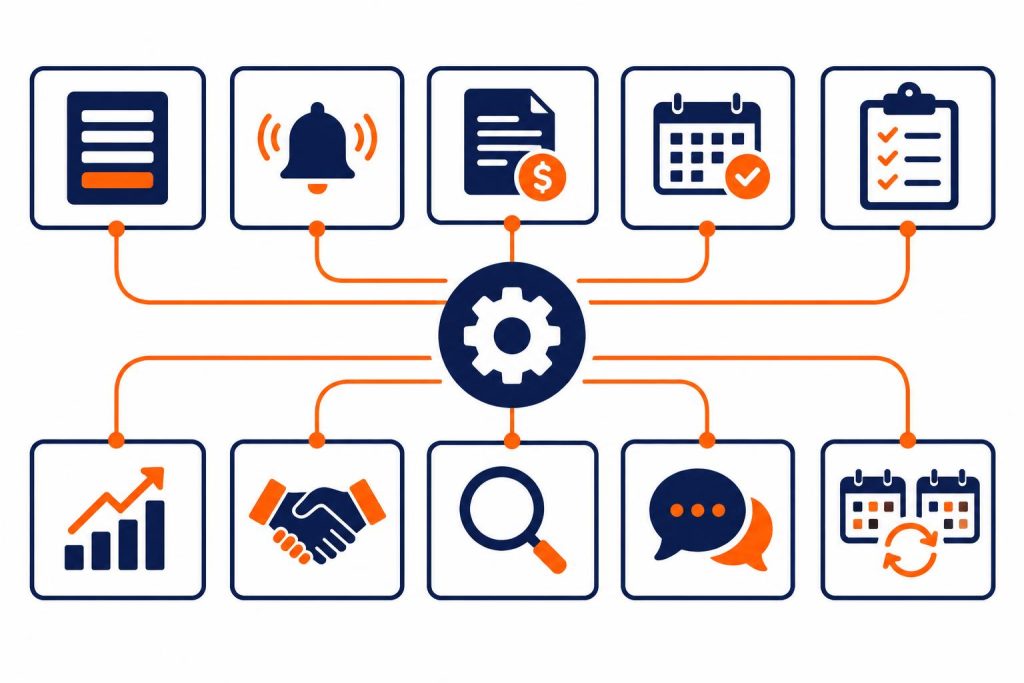
The list runs from simple integrations you can set up in a day to solutions that use AI, with how each works in practice.
1. Form enquiries straight into your CRM
Every enquiry from your website goes automatically into your CRM or a spreadsheet: name, phone, service, traffic source. The system assigns an owner and sends them a notification by phone or messaging app. The customer instantly gets a thank-you email saying when you will reply.
No enquiry gets lost in the inbox, and you know which campaign each contact came from. Get this in place before you pay for ads.
2. Appointment reminders
An appointment, a meeting, a payment due date, a contract ending. The system sends a text or email the day before and, if needed, again that morning. For clinics, salons and service firms it is one of the simplest automations, and it cuts no-shows and late payments.
Reminders can work internally too: the team gets a heads-up that the fleet insurance ends next week or a domain needs renewing.
3. Automatic invoicing
When a customer pays for an order in your shop or through a payment gateway, the system issues an invoice in your accounting software and emails it. Recurring payments get a new invoice every month by themselves. Most popular invoicing programs have an API, so connecting them to your site or shop is usually simple.
In Poland, invoices go through KSeF, the national e-invoicing system, so check that your software supports KSeF and that the integration passes on all the data a structured invoice needs. Run this part past your accountant.
4. Booking confirmations
A customer books on your website, and the system blocks the slot, sends a confirmation with a summary and directions, then a reminder before the visit. A guesthouse that takes direct bookings, such as Willa pod Smrekiem, does not have to reply to every guest individually.
This is customer service automation too: guests get an answer in seconds, even at midnight, and you stop fielding “did my booking go through?” calls.
5. Job sheets for your crews
In the system we built for DMD Arena Częstochowa, a sports and events venue in southern Poland, customers pick a date, arrange the room on an interactive floor plan, choose equipment and catering, and see the price as they go. A submitted enquiry holds the date for 72 hours. Once the contract is signed, the system sends job sheets as PDF and Excel files to the technical and catering crews.
The crew gets exactly what the customer ordered: layout, seats, equipment, times. Nobody copies emails into notes, so nobody forgets a microphone or an extra table. Panel Weselny for Stara Warzelnia works the same way: data from the couple’s form ends up on job sheets for the kitchen and waiting staff.
6. Reports that build themselves
Weekly sales, enquiries from ads, room occupancy, overdue payments. The automation pulls data from several systems into one spreadsheet or dashboard and sends you a summary every Monday at 8:00. Five minutes of reading replaces an hour of compiling.
Start with one report you already do by hand. Once it has run for a month without fixes, add another.
7. Onboarding new customers
A customer signs a contract or pays for a package, and the system starts a sequence: welcome email, data questionnaire, access to the customer panel, a task for the team in your project tool and a reminder after a week if the questionnaire has not come back. On the InstaBooster platform, subscriptions paid through Stripe link to the customer panel instantly.
Every customer goes through the same steps in the same order. Your company looks professional even when you are run off your feet.
8. Monitoring listings and prices
People check listings, competitor prices or tenders out of boredom or not at all. A bot can scan chosen sites every few minutes and alert you when something matches your criteria. That is how FindYourDeal works: a Telegram bot that monitors OLX (Poland’s biggest classifieds site) and Vinted.
The same mechanism works for a business: new requests for quotes in your industry, a supplier’s price change, a new online review of your company.
9. AI answers to frequent questions
Opening hours, indicative prices, directions, available dates, what to bring to a class. An AI assistant on your website answers these from your materials and passes harder cases to a person with the customer’s contact details. Examples include the Smile Design dental clinic and Kotelnica Summer Festival.
The assistant needs a good knowledge base and clear limits. Decide what it answers itself and when it says “I’ll pass this on to the team”.
10. Calendar sync
Website bookings, portal bookings, Google Calendar meetings and a team rota in a separate spreadsheet are a fast track to double bookings. With syncing, a slot taken in one place vanishes from the others at once. In Panel Weselny, the venue calendar is the single source of truth for the whole team.
If you use several booking portals, check whether they offer a calendar export (iCal) or an API. That is usually enough to connect them.
How to choose what to automate first
Do not automate everything at once. Start with one or two tasks that give the quickest result, using a simple three-part score.
- Frequency. How many times a month do you do the task? Something you do 100 times takes priority over something you do once a quarter.
- Time. How many minutes does one run take, including switching programs and finding data?
- Errors. How often does it go wrong, and what does that cost? A wrong date, a lost enquiry or an incorrect amount on an invoice can cost more than the working time itself.
Score each task from 1 to 5 on each dimension and multiply the results. A task scoring 60 or more is a good place to start. Below 20, it is not worth the budget for now.
Also ask whether the process is already organised. If everyone does it differently, write down one way first and automate that. Automation copies a mess as fast as it copies order.
Hours saved calculator
Enter your tasks in the table using this formula: repetitions per month × minutes per run ÷ 60 = hours per month. Below is an example for a small service business. The figures are illustrative, so use your own.
| Task | Repetitions per month | Minutes per run | Hours per month |
|---|---|---|---|
| Copying form enquiries into the CRM | 80 | 5 | 6.7 |
| Sending appointment reminders | 120 | 3 | 6.0 |
| Issuing and sending invoices | 60 | 6 | 6.0 |
| Booking confirmations | 100 | 4 | 6.7 |
| Weekly sales report | 4 | 60 | 4.0 |
| Answering repetitive email questions | 150 | 4 | 10.0 |
| Total | 39.3 |
Here that is about 39 hours a month, roughly five working days. Even if automation takes over only some of these tasks, you can easily compare the saving with the setup cost.
To work out the return, multiply the hours won back by the hourly cost of the person who does these tasks today. Add the cost of the errors that will disappear, such as customers lost because they did not get a reply in time.
Fun fact. The word “automation” was born in a factory. It was first used in 1946 at the Ford Motor Company, where engineers needed a name for the new machines on the assembly line. As the story goes, one of the company’s vice presidents asked for “more of that automatic business” and coined a new word in the process (source: Nicholas Carr, Rough Type).

Make, Zapier, n8n or a custom system
Most tasks on the list can run in no-code tools, which connect apps without programming. The three most popular are Make, Zapier and n8n. They work in a similar way: you choose a trigger (for example a new form submission) and then the next steps (add a contact, send an email, create a task).
- Zapier has a huge number of ready-made integrations and the easiest start. It works well for simple scenarios with a few steps.
- Make lets you build more complex scenarios with conditions and loops on a clear visual map.
- n8n can be installed on your own server, so the data stays with you. It is a good choice when you process customers’ personal data or run a high volume of operations.
Pricing depends on monthly operations and changes now and then, so check the provider’s current prices before choosing. At low volumes, free or entry plans are often enough.
When a process is central to the business, such as bookings, quotes or event management, a custom system works better. That was the case at DMD Arena and Stara Warzelnia: instead of stitching together five tools, the client has one panel with statuses, a calendar and documents. Read more about solutions like these on our custom apps and systems page.
How to roll out office automation step by step
Office automation works best in small, measured steps. This plan suits companies of a few to several dozen people.
- List the tasks. For a week, note down every repetitive task and how long it takes.
- Score them. Use the frequency × time × errors multiplier and pick the two tasks with the highest score.
- Map the process. On paper, write down the trigger, the steps that follow and who gets notified.
- Build and test. Run the automation alongside the manual work for a week and compare the results.
- Set up error alerts. Every scenario should notify you when something fails, for example when the connection to your invoicing software expires.
- Train the team. Show people what the automation does and what is still their job.
Remember personal data. If an automation sends customer data to external services, check where it is stored and update your data processing agreements and privacy policy.
Common business process automation mistakes
- Automating chaos. If a process has no single pattern, the automation will keep tripping over exceptions.
- No owner. Every scenario needs someone who knows how it works and responds to errors.
- Too much at once. Twenty scenarios launched in a month are hard to maintain. Five that run without fixes are better.
- Stiff messages. An automated email can still sound human. Write it the way you would write to the customer yourself.
- No documentation. Record in one place which scenarios are running and what they connect. A year from now, nobody will remember.

Frequently asked questions
Where should a small business start with automation?
With the task you do most often and the one that causes the most errors. For most service businesses, that means form enquiries and appointment reminders. You can set up both quickly and see the effect straight away.
Do I need a developer for automation?
Not for simple scenarios in Make or Zapier. A developer helps when systems lack ready-made integrations, you need custom logic or you want one dedicated panel instead of several tools.
How much does process automation cost?
It depends on the scope. A simple scenario in a no-code tool usually means a small monthly subscription plus a few hours of setup. A custom system is a separate project, priced by the number of features and integrations. Always compare the cost with the hours you will win back.
Can an AI assistant replace customer service?
It can take over answers to repetitive questions and collect the details for an enquiry. Unusual cases, complaints and negotiations should go to a person. A well-configured assistant knows when to hand the conversation on. We cover this in more detail in our guide to the AI chatbot for business.
Which should I choose: Make, Zapier or n8n?
Zapier for an easy start, Make for more complex scenarios, n8n when you want to keep data on your own server. If you are not sure, describe your process to us and we will recommend a tool.
Hand the repetitive work to a system
Pick one task from the list today, work out in the table how much time it takes and check whether it can be automated. The first automation usually pays for itself fastest, because it removes the most tedious retyping.
Want us to review your processes, design scenarios in Make, Zapier or n8n, or build an AI website assistant? See our automation service. You can also call us on +48 794 505 965 or write to us.